Image screen
On the image screen, the images (and the report) are displayed in viewports.
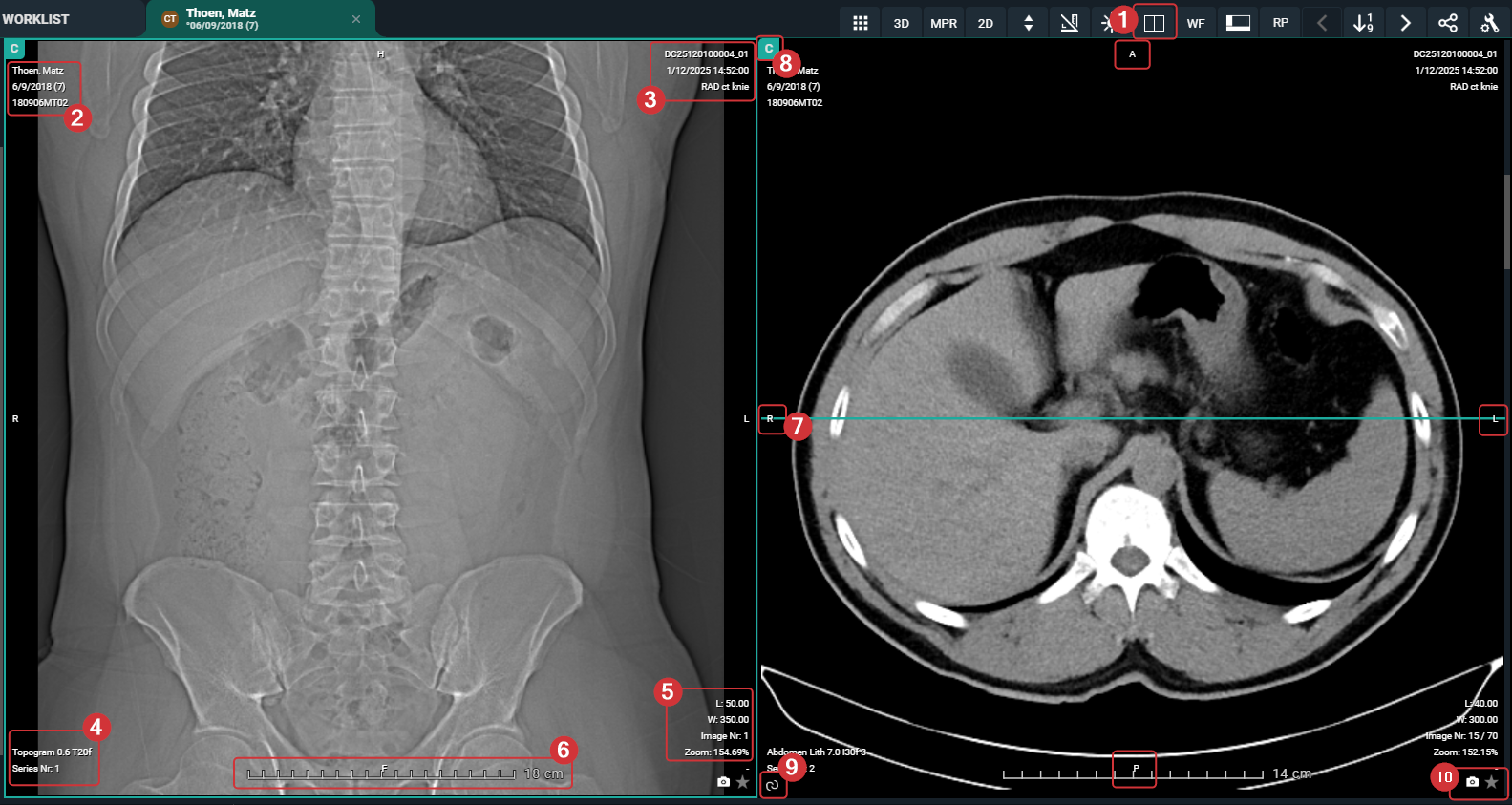
|
Number
|
Element
|
Description
|
||||
|---|---|---|---|---|---|---|
|
1
|
Layout
|
In the top toolbar, you can change the layout of the image screen to display more or less viewports.
|
||||
|
2
|
Patient information
|
Patient information, such as the patient's name, date of birth, and Patient ID.
|
||||
|
3
|
Study information
|
Study information, such as the procedure and study date.
|
||||
|
4
|
Series information
|
Series information, such as series number.
|
||||
|
5
|
Image information
|
Image information, such as length and width of the image, image number in the series, and zoom level.
|
||||
|
6
|
Scale ruler
|
Indicates the image width scale.
|
||||
|
7
|
Orientational reference indicators
|
The following letters are used to indicate the referential orientation:
• H: Head
• F: Feet
• A: Anterior
• P: Posterior
• L: Left
• R: Right
|
||||
|
8
|
Study type
|
This abbreviation indicates the type of study that is currently displayed:
• C: current study
• P: prior study
• S: subsequent study
|
||||
|
9
|
Linking series
|
Click to link series with one another or unlink them from another.
|
||||
|
10
|
Secondary capture and key image
|
Click on the respective icons to take a secondary capture of the image or mark the image as a key image.
|
||||

|
Tip |
|

|
Elements 2 to 7 are part of the Overlays. They can be shown/hidden by selecting them from the Visible elements in the top toolbar.
|