Linking series
Image series in the viewports can be linked so you can scroll through them simultaneously.
Automatic linking
If two or more viewports display image series that share the same frame of reference and orientation, they are linked automatically into linking groups. This is indicated by a letter next to the link icon in the viewport. All image series belonging to the same linking group are marked with the same letter, starting with A.
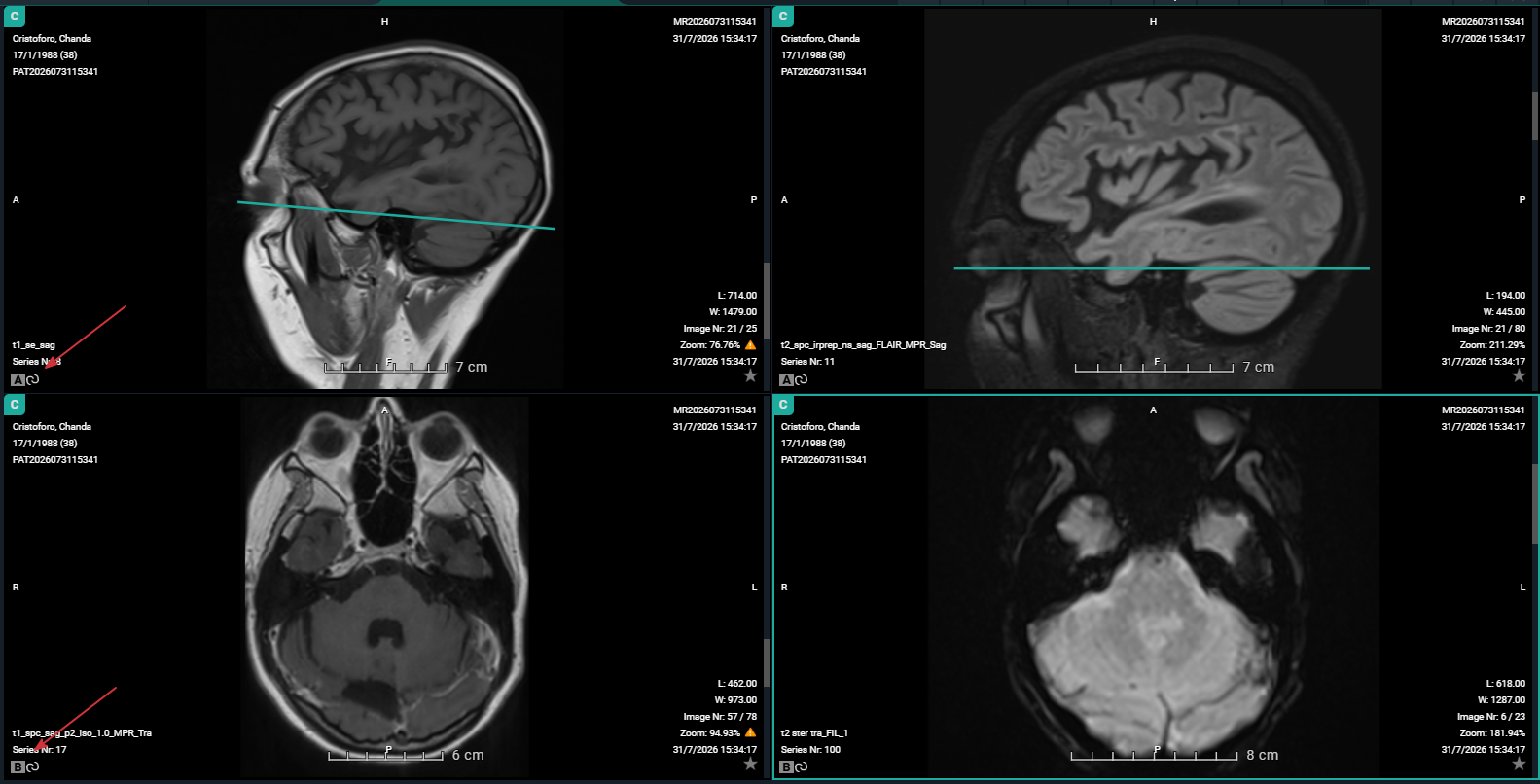
If you want to unlink them to scroll through them individually, go to Image control in the top toolbar and deselect Auto link series.
Manual linking
Image series that are not linked but share the same orientation can be linked manually. Manual links are indicated by numbers. All image series belonging to the same linking group are marked with the same number, starting with 1.
Image series can be linked manually in the following way: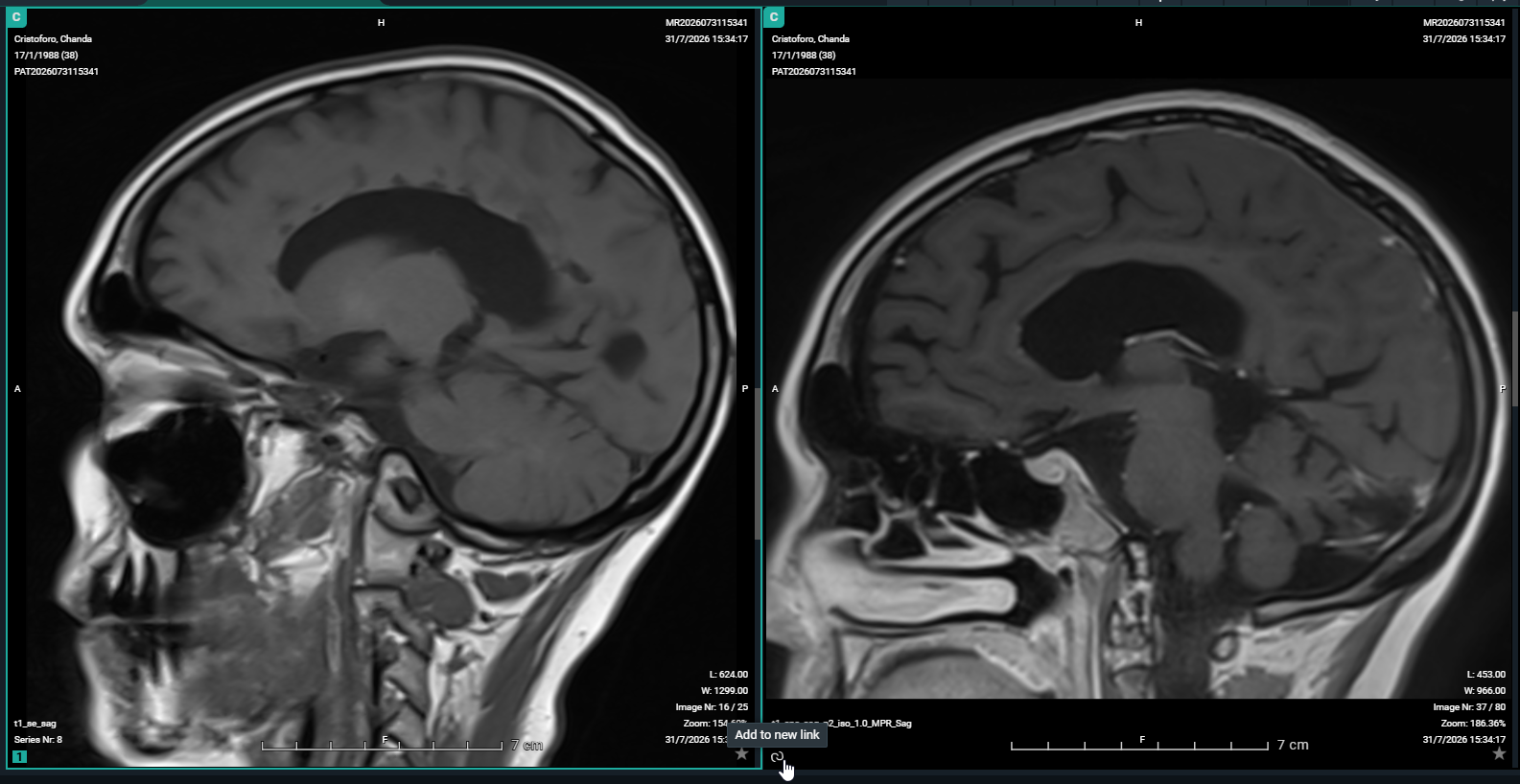
1. Click on the link icon in the bottom left corner of the viewports of the image series that you want to link. The link icons will turn into numbers.
2. Click anywhere except on the numbers. The numbers will turn grey. The series are now linked and you can scroll through them simultaneously.
• If you now click on another link icon, you will start a second linking group.
• To unlink the series, click on the number.
Important | |
 | Automatic or manual linking of series is not possible in case one of the series is an MPR. If the DICOM tag (0020,0032) image position (patient) is missing, you will not be able to link this series. The link icon is disabled and the following tool tip is provided: No image position information provided, no linking possible. |