Volume registration
Volume registration is the automatic anatomical linking between 2 studies.
To use this feature, the following prerequisites need to be met:
• Registration is only possible between 2 studies.
• Only for CT/MR/SPECT/PET.
• Both volumes should be available in the cloud.
• Minimum number of 10 slices.
• Maximum spacing between slices of 10mm.
• All slices need to have the same orientation.
Volume registration can be created and reset in the following ways:
1. To start volume registration, click on the registration icon  in the bottom left corner of the two series that you want to link.
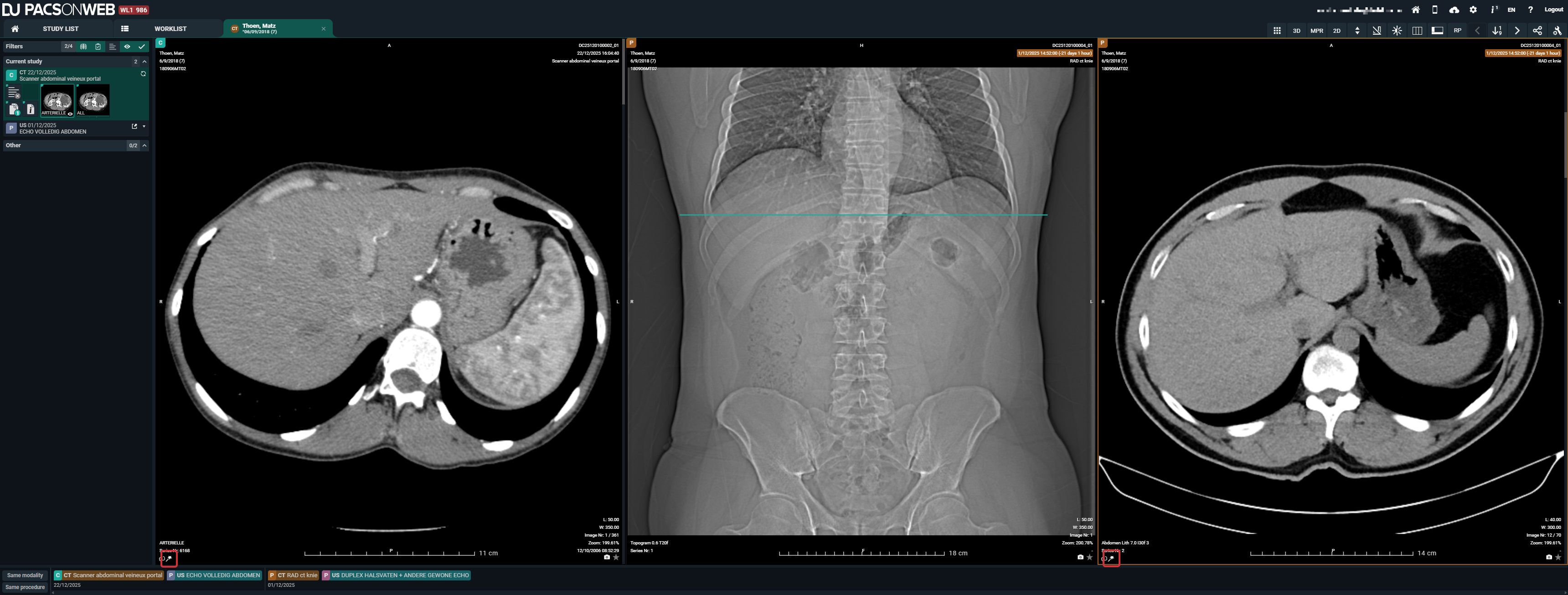 The icon is only visible if the series is a volumetric series that meets the requirements.
Once both the icons are clicked, DU POW will start with the volume registration.
a. The following toast message is shown to indicate that DU POW is busy with the registration: Creating volume registration...
b. When the registration is finished, you will be notified with the following message: The volume registration is ready.. A gray R icon  will be displayed in the viewport for all series affected by the registration.
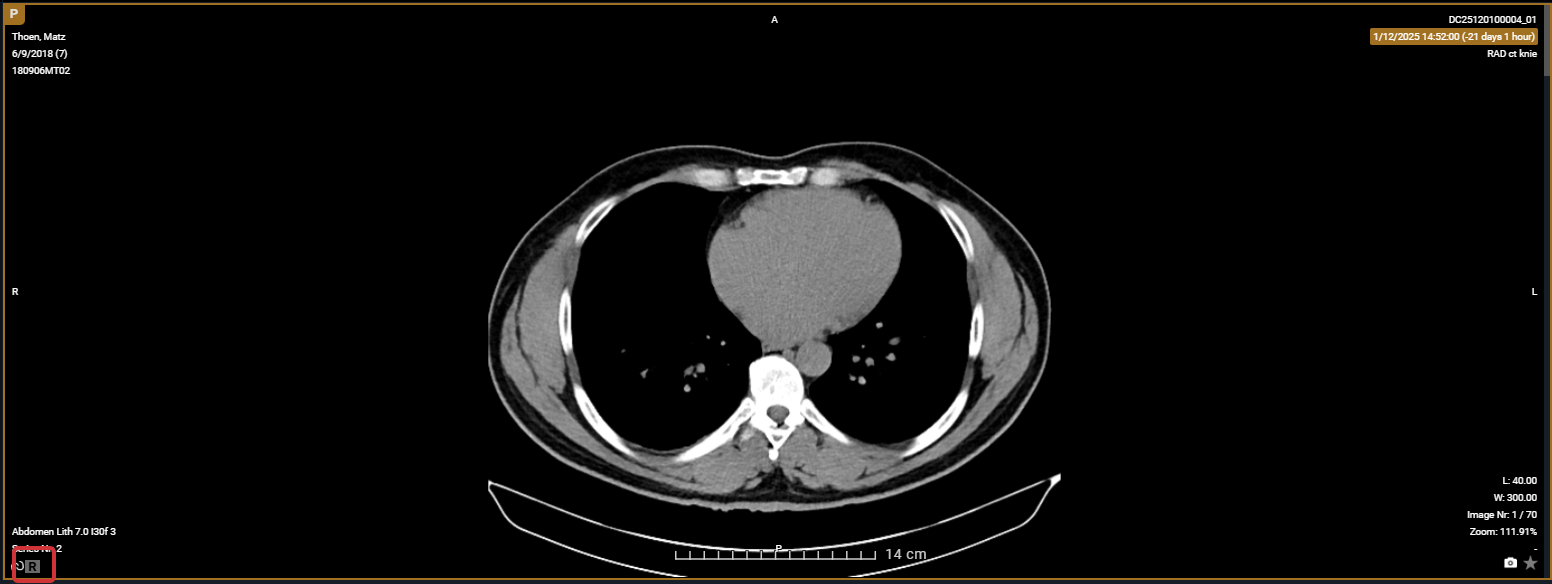
will be displayed in the viewport for all series affected by the registration. 2. To reset the registration, click the R icon.
Important | |
 | When the registration is not perfectly correct, you can easily adjust the registration to the correct slice of the series: a. Press and hold the ALT key to scroll in the series that needs to be adjusted. b. Scroll to the correct location and release the ALT key. c. After releasing the ALT key, the series will scroll in sync again. |
Warning | |
 | The Volume Registration will not be 100% correct in every scenario. It is still the users' responsibility to verify the outcome of the tool and make corrections if needed. |