Sharing studies
It is possible to share studies with other users, groups, radiology departments, or self-defined recipients (i.e. someone that does not have an account on DeepUnity PACSonWEB, e.g. a patient).
On the study list, check the studies that you wish to share (1) and click SHARE STUDIES (2). A pop-up window opens where you can configure the details for sharing.
|
Important |
|

|
Sharing multiple studies at once is only possible if all studies originate from the same source.
|
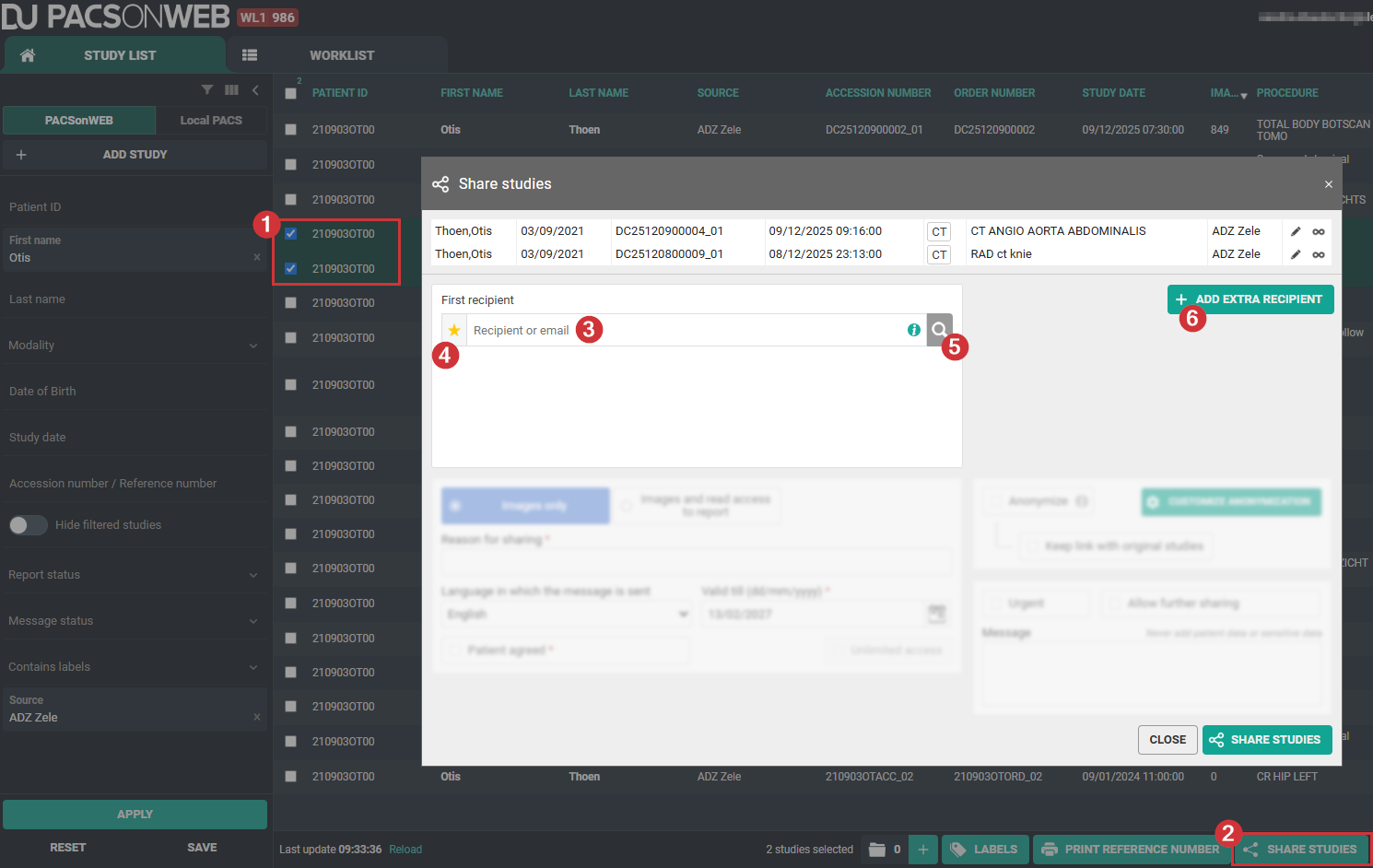
1. Choose the recipient. You can add more recipients by clicking +ADD EXTRA RECIPIENT (6). You can share studies with up to 3 recipients.
◦ Type in the name, email address, phone number, or physician number (3) to open a drop-down list and select the respective recipient.
◦ Click the star icon (4) to open your favorites and select a recipient from there.
Tip | |
 | You can add favorites to your list by toggling the star icon next to the recipient or by adding them in the user settings. |
◦ Click the search icon (5) to open the detailed search to look for your recipient. If the recipient is not a user, a group, or a medical department, you can create a self-defined recipient by clicking Create new recipient.
◦ If your recipient is not a user, a group, or a medical department and you don't want to create a self-defined recipient, you can enter the recipient's email address into the search field and select Use this email address.
2. Choose how the recipient will be notified. Depending on the type of recipients, different options are available.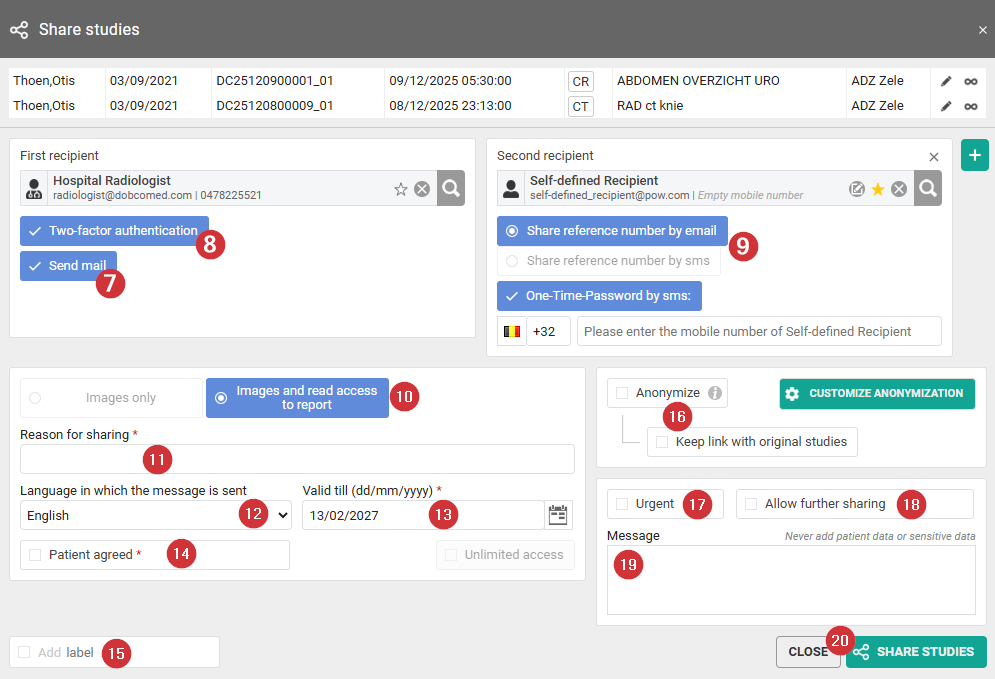
◦ Users, groups, and medical departments will find the shared studies in their PACS systems. You can choose to notify them via email and ask for two-factor authentication.
▪ Send email (7): If you select this option, the recipient will receive an email containing information that a study has been shared, the name of the person who shared the study, the patient's name, a description of the study, the date of the study, and a link to the study.
▪ Two-factor authentication (8): If you select this option, the recipient will receive a one-time password (OTP) that needs to be entered before access is given.
Important | |
| If the user enters an incorrect OTP in 5 consecutive attempts, access will be blocked. It can be unblocked by the service desk or an admin user of the sending radiology department. |
◦ Self-defined recipients and recipients via email will receive a reference number to access the shared studies. Choose if the reference number will be sent by email or SMS. Additionally, you can ask for two-factor authentication via one-time password (9).
3. Set the parameters for sharing (10).
◦ Images only: This option is only available for sharing studies with a self-defined recipient.
◦ Images and read access to the report.
4. Enter a reason for sharing (11).
The reason is not communicated to the recipient but is mandatory and will be registered in DeepUnity PACSonWEB.
5. Select the language in which the recipient will be notified about the shared studies (12).
By default the language of the first recipient is selected but you can change the language by using the drop-down menu.
6. Set a validity date for the access rights (13).
7. Check the Patient agreed checkbox (14).
Without the patient's consent, the study may not be shared.
8. Optionally, add a label to the study (15). Check the Add label checkbox to open the drop-down menu for selecting the label. Choose the user or group that the label should be set for.
9. Optionally, anonymize the study (16).
The name of the patient will be replaced.
Important | |
| The report for an anonymized study will never be accessible, even if you selected the option Images and read access on the report. |
10. Optionally, mark the notification email Urgent (17).
"Urgent" will be added to the subject line of the notification email.
11. Optionally, allow further sharing (18).
This option is not available for self-defined recipients.
12. Optionally, add a message (19).
The message will be added to the notification email. In case the recipient is a user, the message is also displayed in the series picker when the study is opened in DeepUnity PACSonWEB.
13. Click SHARE STUDIES (20).
A pop-up window with information about the shared studies will be displayed.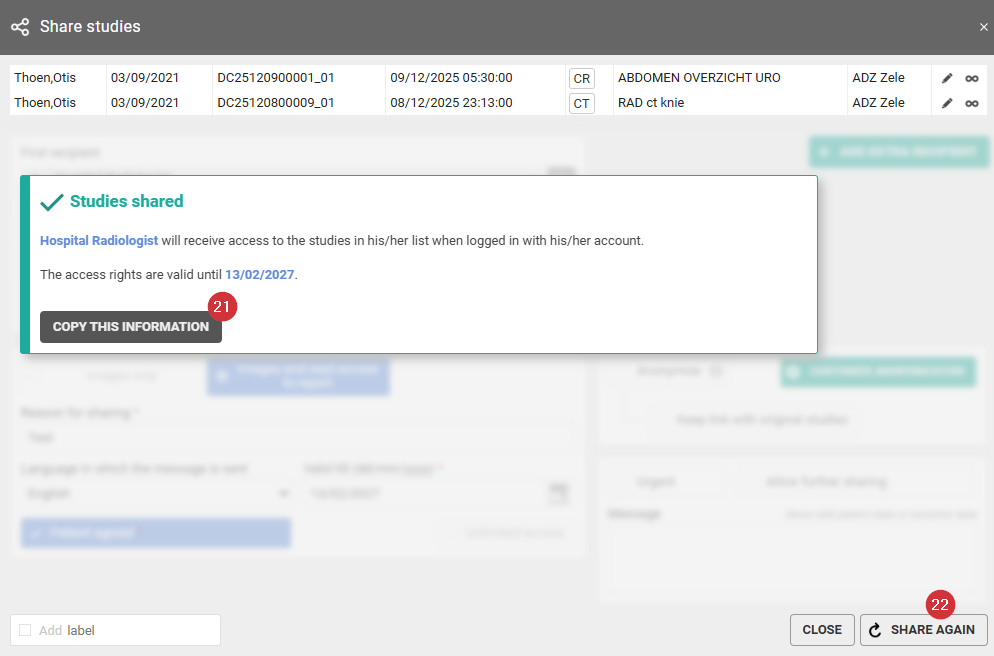
◦ Click on Copy this information (21) to copy the content of the pop-up to the clipboard so e.g. it can be pasted into your own email.
◦ Click Share again (22) to share the same set of studies again with another recipient.
Tip | |
| All emails that are sent automatically when sharing a study can be customized by the sending radiology department. Please contact the service desk to have this configured. |